 Escape fromScreen
How it works
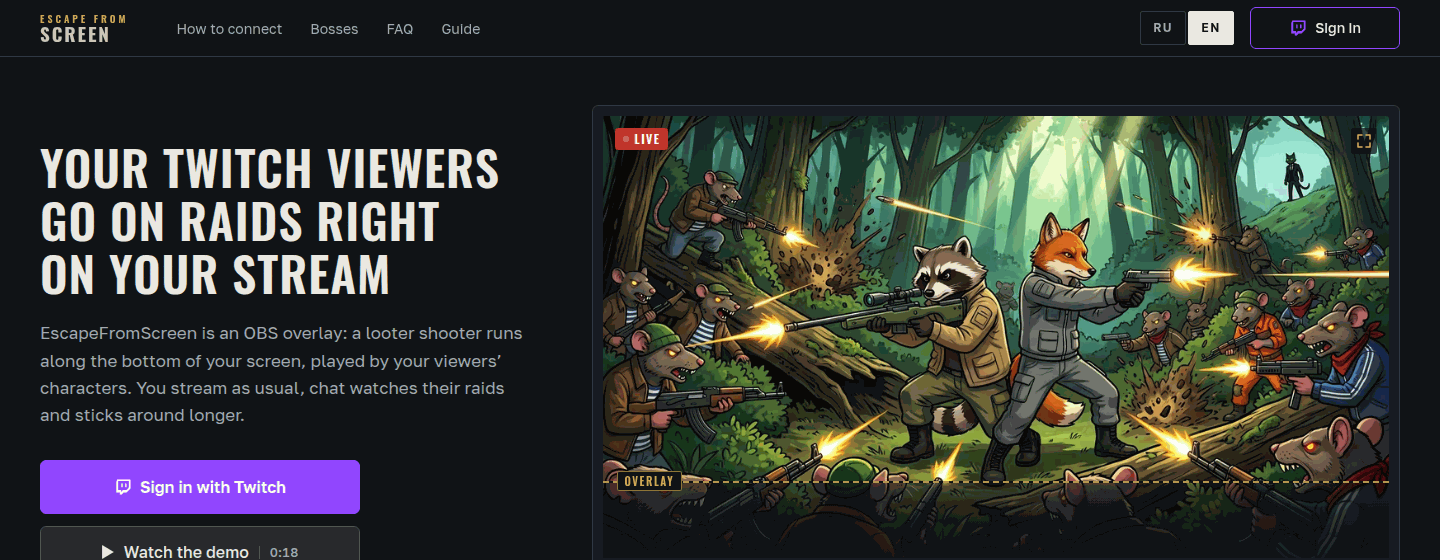
EscapeFromScreen is a Twitch stream overlay: viewers of your channel get bot characters who play a looter-shooter at the bottom of the screen. Setup takes the streamer minutes; a viewer only needs the link and a Twitch login.
Streamer
Ten-minute setup
From Twitch login to a live world on your stream: dashboard, overlay in OBS, viewer link, donations.
Sign-up and dashboard
Open the site and press Log in with Twitch - the dashboard is created automatically, no separate sign-up. We never see or store your password: login is confirmed on the Twitch side.
- Open escapefromscreen.com and press «Log in with Twitch».
- Confirm the login in the Twitch window.
- You land in the dashboard -
/dashboard. It already works; nothing else is required.
Dashboard tour
The dashboard is the control panel of your world. Every block on one page, nothing extra.
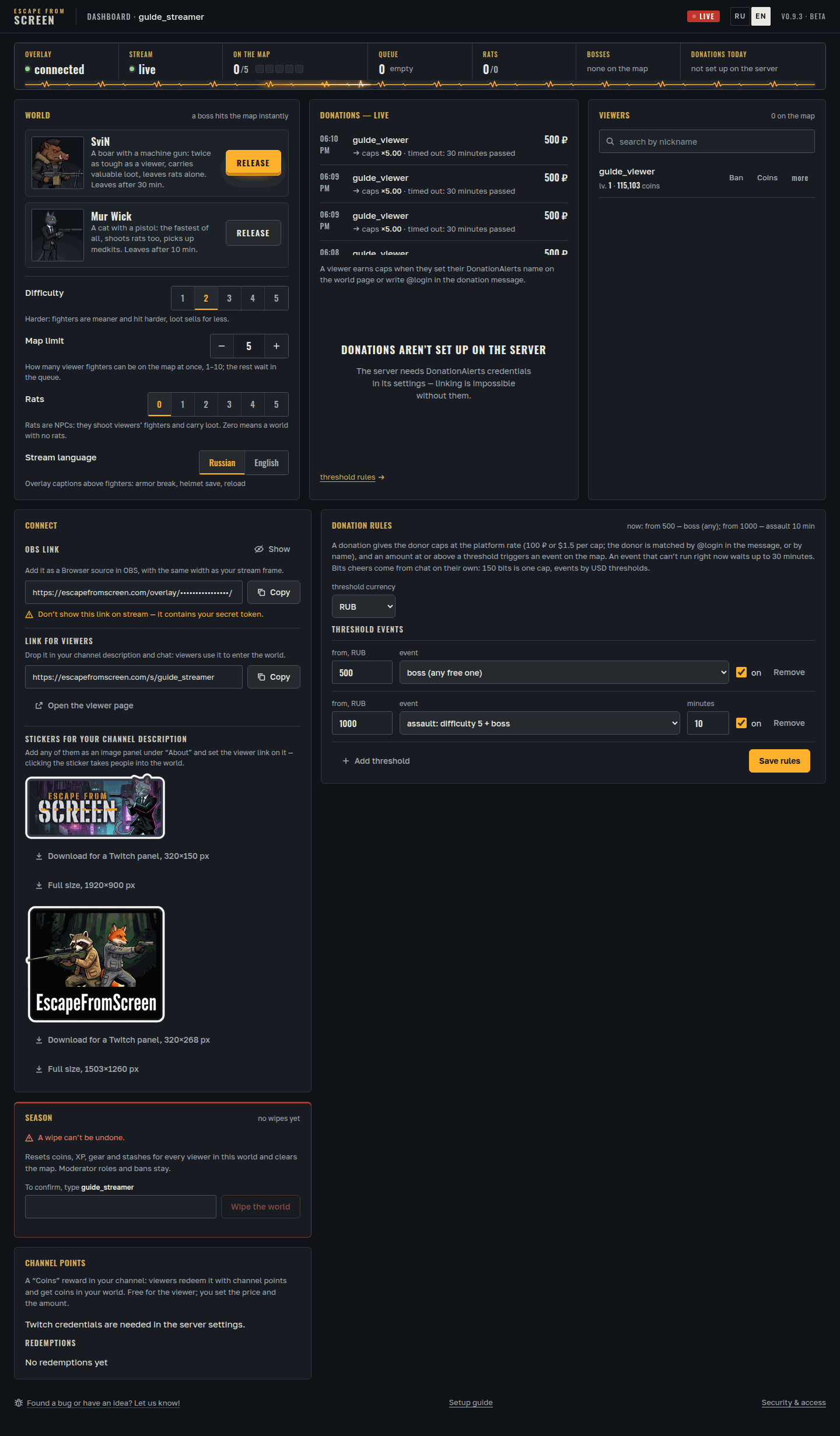
- Status - whether your Twitch stream is live and the overlay is connected. The world is active only while both are on.
- World settings - difficulty, spawn limit, rats on the map.
- Donations - DonationAlerts connection, event thresholds and the donation journal.
- Channel points - a reward viewers redeem for world coins with Twitch points.
- Viewers - every character: moderator roles, bans, manual coin grants.
- Bosses - send SviN or Mur Wick onto the map right now.
- Wipe - a new season: reset coins, XP and loot of every character in the world.
What the settings change
Difficulty (1–5) changes the economy and combat: the higher the difficulty, the cheaper loot sells and the harder enemies hit. High difficulty is harder to survive - and more exciting to watch.
Spawn limit - how many characters stand on the map at once. Everyone else waits in a queue and spawns as soon as someone exits or dies. The limit keeps the screen readable.
Rats are NPC enemies: weaker than viewers, but they disrupt looting and take the loot. Bosses (SviN and Mur Wick) appear on their own rarely, can be sent manually from the dashboard, and big donations summon them by thresholds.
Where to get the OBS URL
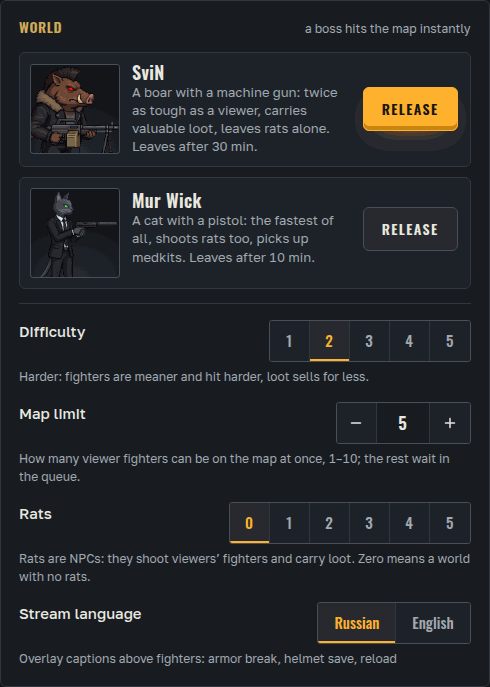
The connection card in your dashboard holds your overlay URL - looking like /overlay/<token>/. Copy it with the button next to the field.
The token in the URL is a secret: anyone who knows it can attach your world to their stream. Never show the overlay URL on stream - show only the viewer link.
The ?h= parameter sets the height of the game band as a percentage of the window height (15 by default). It only shrinks the band: if characters cover something important, try ?h=10.
Setting up OBS
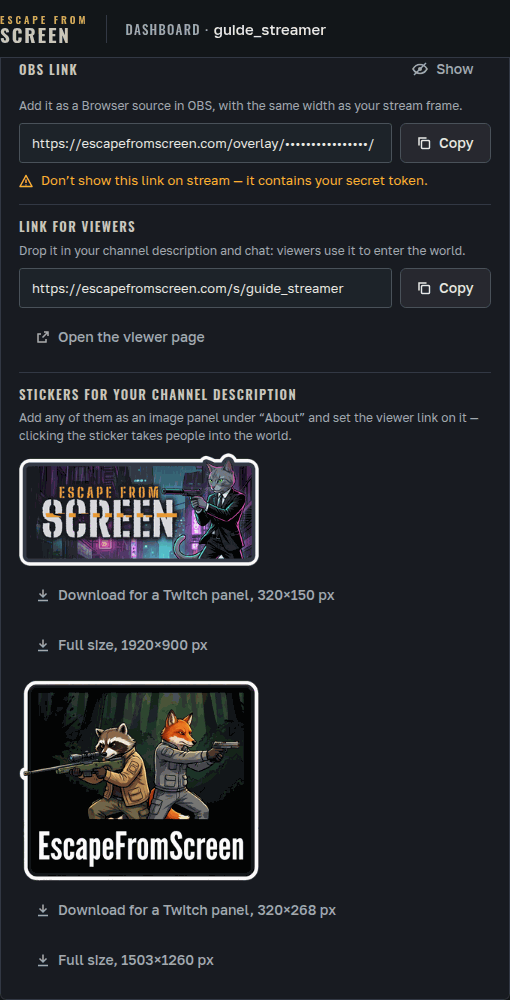
- In OBS, open the Sources list of your scene, press + → Browser.
- Paste the overlay URL into the URL field.
- Set Width and Height to your scene screen size, or stretch the block in the scene preview however you like.
- Press OK. The overlay draws the game band at the bottom of the screen by itself - no need to move or scale the source.
The world is active only while the Twitch stream is live and the overlay is connected. Both signals are shown in the connection card - check there first if something is off.
The viewer link
Your world link is escapefromscreen.com/s/your_login, where your_login is your Twitch login. Add it to your channel panels: Creator Dashboard → Customization → Channel panels → «Add panel» → text or image with the link.
With no stream or no connected overlay, viewers see the world but raiding is disabled - that is expected, not a bug. The stream check takes up to 30 seconds: the raid button comes alive on its own once you go live.
Donations and DonationAlerts
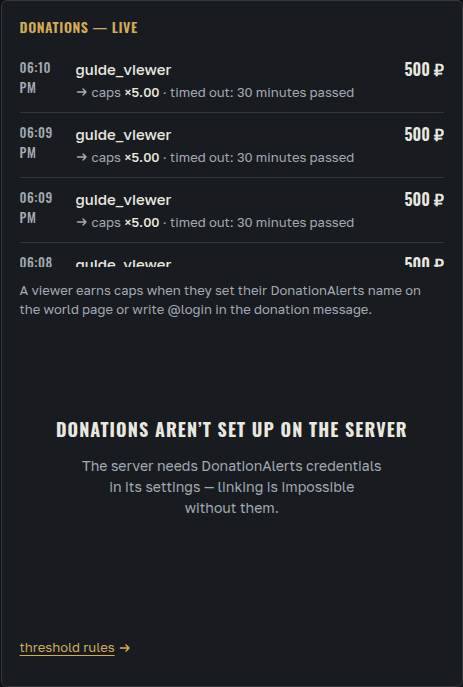
Connect DonationAlerts in the dashboard (the «Donations» card → connect) - one consent click. From then on, every donation gives the donor bottle caps, the platform donation currency, and donations past a threshold sum launch an in-map event (a boss, a «storm»). Thresholds and rates are right in the same card.
For caps to reach your viewer, they must enter their DonationAlerts name in the caps dialog on the world page. The lookup first checks the @login in the donation message, then the claimed name - tell your viewers about it, it is the most common reason for «I donated but got no caps».
The rest of the levers
- Channel points - one consent in the dashboard creates the «EscapeFromScreen Coins» reward in your channel (500 points → 1 000 coins by default). Viewers redeem it with Twitch points; coins arrive automatically.
- Coin grants - the «Viewers» panel lets you give a viewer 1 to 1 000 000 coins manually, e.g. for chat activity.
- Moderators - give a viewer a role in the «Viewers» panel: they can ban and unban on the world page. You are the only one who changes roles and bans.
- Bosses - the dashboard button sends SviN or Mur Wick onto the map immediately.
- Wipe - a new season: resets coins, XP, gear and stashes of every character in the world. Appearance, roles and bans survive. A wipe cannot be undone; the confirmation is your Twitch login.
Viewer
Your character in the streamer’s world
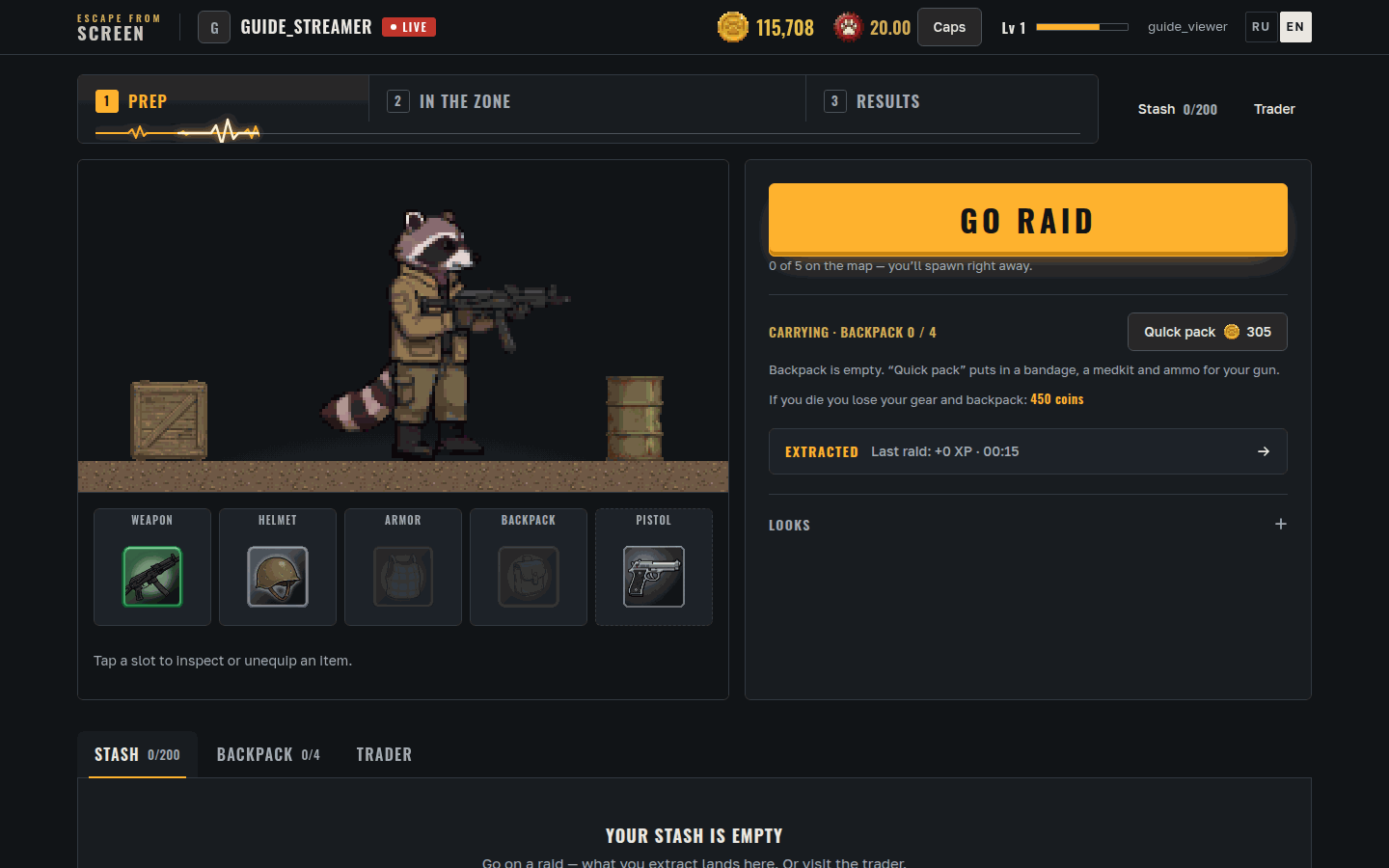
Follow the streamer’s link to your character’s page in the streamer’s world: raid gatherings happen here, and your donation caps, levels and appearance are shown.
Joining the world
Follow the streamer’s link from a channel panel or chat and log in with Twitch. The character is created automatically - a separate one in every streamer’s world, with progress, a stash and gear of its own.
Joining a raid
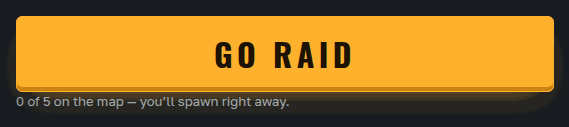
The «Go raid» button sends your character onto the map - at the bottom of the stream. The map holds a limited number of fighters: if it is full, your character waits in a queue and spawns as soon as someone exits or dies.
For the first 30 seconds of a raid every exit is locked - fighters check the nearest crates. After any outcome - an exit or a death - the next raid is available in 15 seconds.
Quick pack
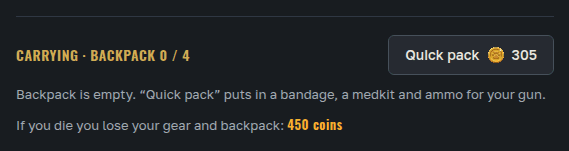
The «Quick pack» button in the backpack card assembles the standard raid kit: a bandage, a medkit and ammo for the equipped weapon. It moves what you already have from the stash and buys what is missing - the total shows right on the button.
An ammo pack is bought only if you have no rounds of that caliber at all. And only one pack purchase is available between raids - beyond that, find ammo in raids.
Gear and the shop
Four slots: weapon, helmet, armor, backpack - five tiers each (grey → green → blue → purple → orange). Plus a pistol: always with you, never bought, never lost on death.
The shop sells tiers 1–3 (tier 3 unlocks at character level 3). Tiers 4–5 are never sold - they are raid finds only: crates, rats, bosses and corpses. Equipped gear is lost on death; the stash is not.
Buying ≠ equipping. A bought item sits in the stash and does nothing until you select it and press «Equip» (or double-click the item: it equips right away). Buying a copy of an already equipped item is fine - a spare for the next death.
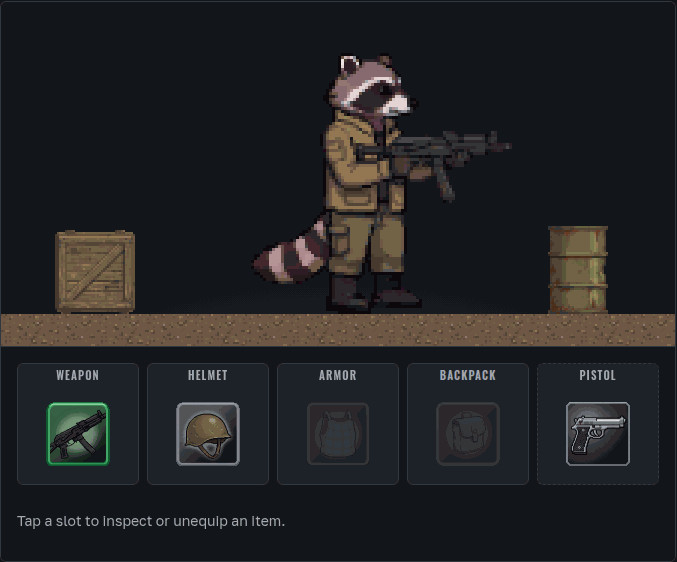

Ammo goes in the backpack!
This is the one thing to remember: only ammo from the backpack is used in a raid. A bought pack sitting in the stash never reaches the map. When the ammo runs out, the character switches to the pistol. Select the pack in the stash and press «To backpack» (or use the «Quick pack» button).
Every weapon except the pistol needs its own caliber: an assault rifle does not fire bolt-action rifle rounds. The shop hints which pack fits your weapon.
Out of ammo mid-fight - your character draws the pistol: weaker, but its ammo never runs out. Unspent rounds return to the backpack after you exit.

Medkits and bandages
Your fighter heals on their own: when health is not full, no enemy is near and meds are in the backpack. A bandage restores 15% health, a medkit 60%. An appearing enemy interrupts the healing, but the item is not consumed.
Like ammo, meds reach the raid only from the backpack - never from the stash. «Quick pack» adds a bandage and a medkit automatically; by hand, use the «To backpack» button.
Exits from the map
The goal of a raid is to reach an exit. Exits stand at the map edges, and there is the «Bunker» in the center - exiting there requires a keycard in your backpack, which is lost after use. For the first 30 seconds of a raid every exit is locked.
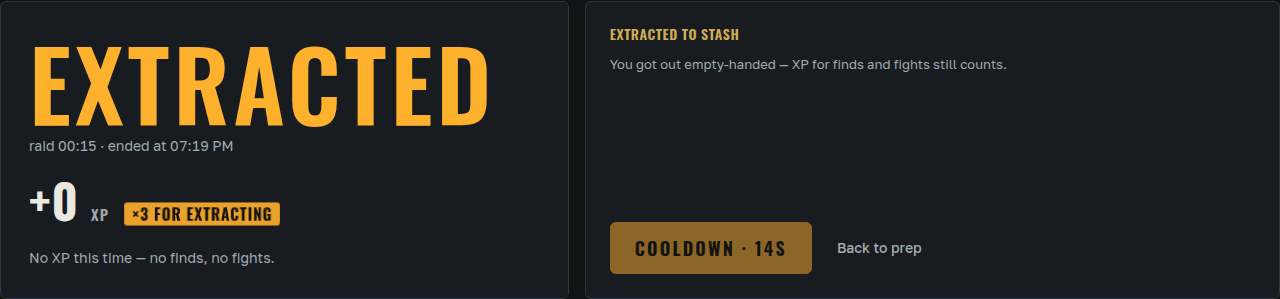
Exited alive - everything you found lands in the stash and the raid XP triples. Died - equipped gear and backpack contents stay on the map in your corpse: whoever opens it first takes it.
Impatient? Type !exit in the channel chat (or press the «exit» button on the viewer page) - your fighter drops the crate inspection and walks to the nearest exit. If less than 30 seconds have passed since the raid started, the character stands at the exit for the remaining time.

Bottle caps for donations
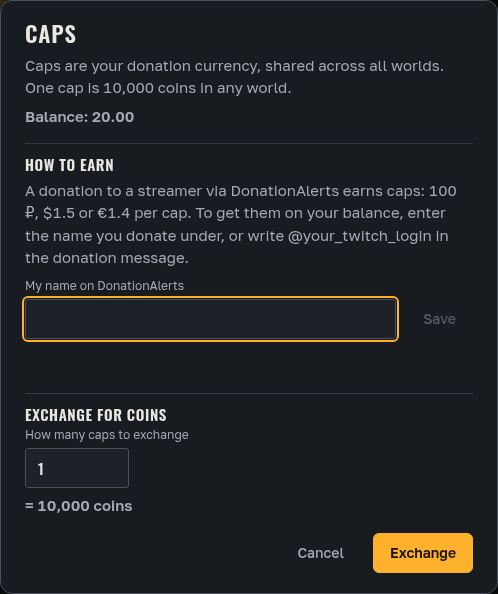
Bottle caps are the platform donation currency: shared across all worlds and never lost to a wipe. They come from donations via the streamer’s DonationAlerts and from Bits cheers in chat (150 bits - one cap); hundredths accumulate.
- Click the caps balance in the world page header - the caps dialog opens.
- Enter your DonationAlerts name - the exact name you donate under - and save. One name per account.
- Donate as usual: caps arrive at the platform rate (≈ 100 ₽ per cap). A donation with
@your_loginin the message finds you even without a claimed name.
Caps are spent two ways: exchanging for coins in any world (the «Exchange» button, 1 cap = 10 000 coins) and donation skins - 25 caps each, bound to your account and wipe-proof.
Appearance
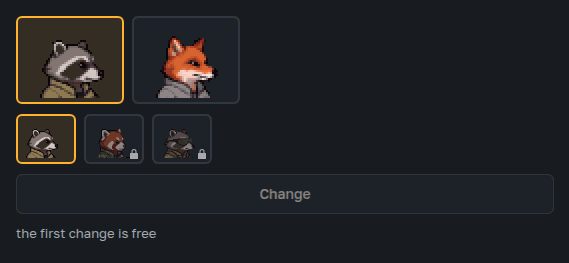
Species - raccoon or fox - and colorway are chosen in the appearance panel on the world page. The first change is free, then 200 coins per change. Donation skins for caps unlock here too. Appearance does not affect gameplay, but it shows off your character.
Changing looks is forbidden during a raid and while waiting in the spawn queue - the fighter on screen stays themselves. Wait for the raid to end.
XP and levels
XP comes from finds - the pricier the item, the more XP, counted the moment you pick it up - and kills. Exit alive and the whole raid’s XP triples. Character level unlocks tier 3 in the shop; your last raid stats are shown on the world page after you exit.
Chat commands
You can steer your character right from the channel chat - commands work only while your character is in a raid, and only affect your own fighter.
!exit- drop the inspection and head to the nearest exit.!left- move to the left side of the map for 15 seconds.!right- move to the right side of the map for 15 seconds.
FAQ
Questions and answers
The world says «offline», raiding is disabled. What is wrong?
The world is live only while the Twitch stream is on and the overlay is connected in OBS. The check takes up to 30 seconds - the raid button comes alive on its own. The streamer sees both signals in the dashboard.
I bought an assault rifle but my fighter spawned with a pistol. Why?
Ammo reaches the raid only from the backpack. A pack in the stash never reaches the map: move it with «To backpack» or use «Quick pack», which does it for you.
I died in a raid - is my gear gone?
What you wore and carried stays on the map in a corpse crate and goes to whoever opens it first. The stash, coins and caps are untouched by death - only what the fighter had is lost.
I donated but got no caps. Where are they?
Check your DonationAlerts name and the caps dialog (world page header) - that is the name the system looks you up by. The other way to be found is writing @your_login in the donation message. Check the grant in the donation journal in the streamer’s dashboard.
When can I raid again?
15 seconds after any outcome - an exit or a death. If the map is full, your character waits in the queue and spawns once someone exits or dies.
How do I switch from raccoon to fox?
In the appearance panel on the world page. The first change is free, then 200 coins. Changing is forbidden during a raid and in the queue.
What does a wipe reset?
A streamer’s wipe starts a new season for the world: it resets coins, XP, gear and stashes of every character in that world. Caps, donation skins, appearance, roles and bans are untouched.